How to Configure an Enterprise Employee
After installing the security certificate on each Store Server, configure an Enterprise Employee for use in the Enterprise Back Office. A default employee has been created in the Fusion Enterprise database. Sign on as the default employee using the steps shown below, then configure the Enterprise Employee's access.
- Open Back Office from the Enterprise Server.
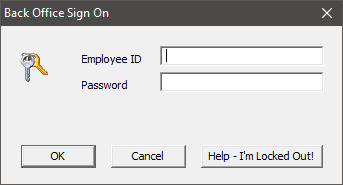
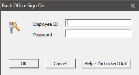
- When the Back Office Sign On prompt opens:
- Enter 1 for the Employee ID.
- Enter 1 for the Password.
- Click OK.
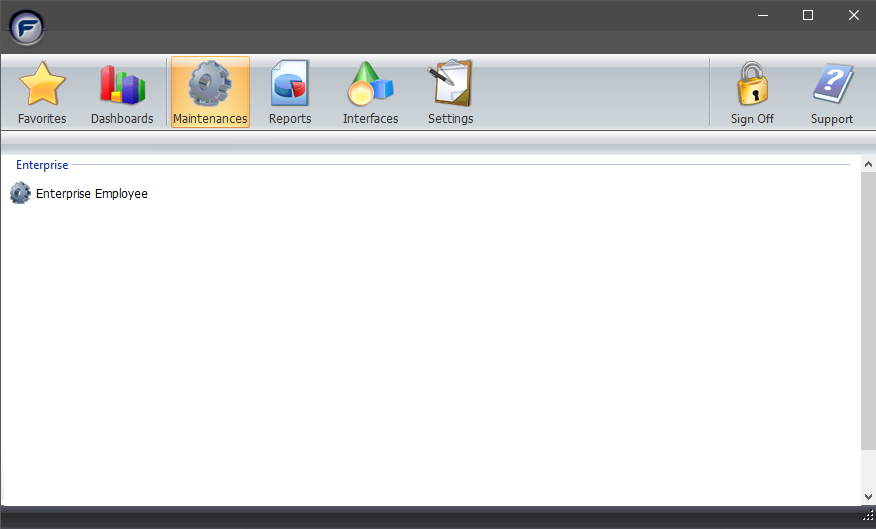
- When the Back Office opens, click the Enterprise Employee option. The License Activation dialog will appear.
- Click Yes to activate the Enterprise License, then license the Enterprise Back Office. See How to License Future Fusion 5.0 for more information on licensing.
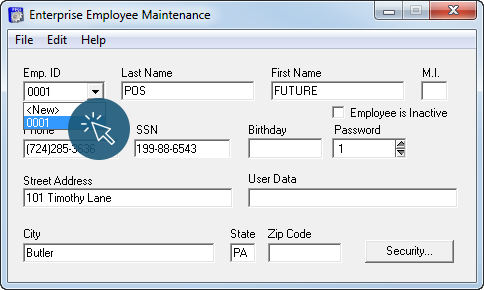
- The Enterprise Employee dialog will appear after competing the licensing process. When the dialog opens, select 0001 from the Emp. ID drop down.
- Click the Security button.
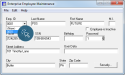
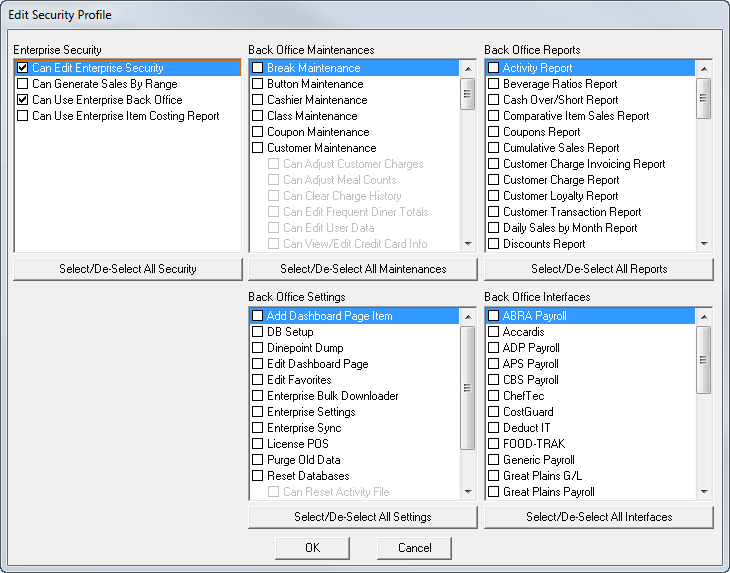
- In the Edit Security Profile window, configure the Enterprise Employee's access privileges, then click the OK button.

- In the Enterprise Employee Maintenance window, select File > Save.
- Close and re-open the Back Office to view the changes made in Enterprise Employee Maintenance.