How to Install the Security Certificate
If the initial setup of Enterprise is done locally, use the local IP Address of the Enterprise Server. If the Enterprise Server is in a remote location, use the public IP Address of that location.
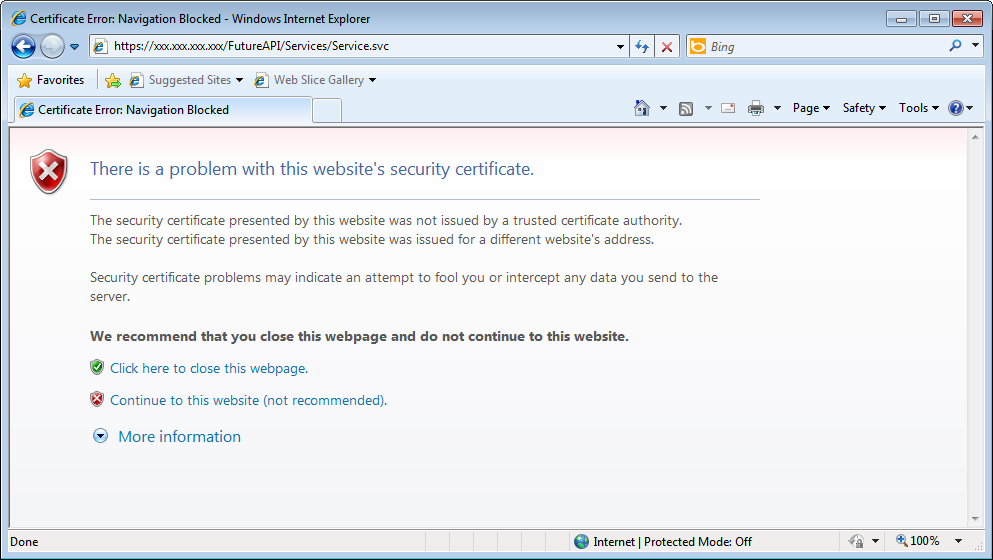
- From the Store Server, open Internet Explorer and navigate to https://Enterprise Server IP Address/FutureAPI/Services/Service.svc
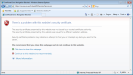
- The Security Certificate error screen will be displayed. Click the Continue to this website (not recommended) option.
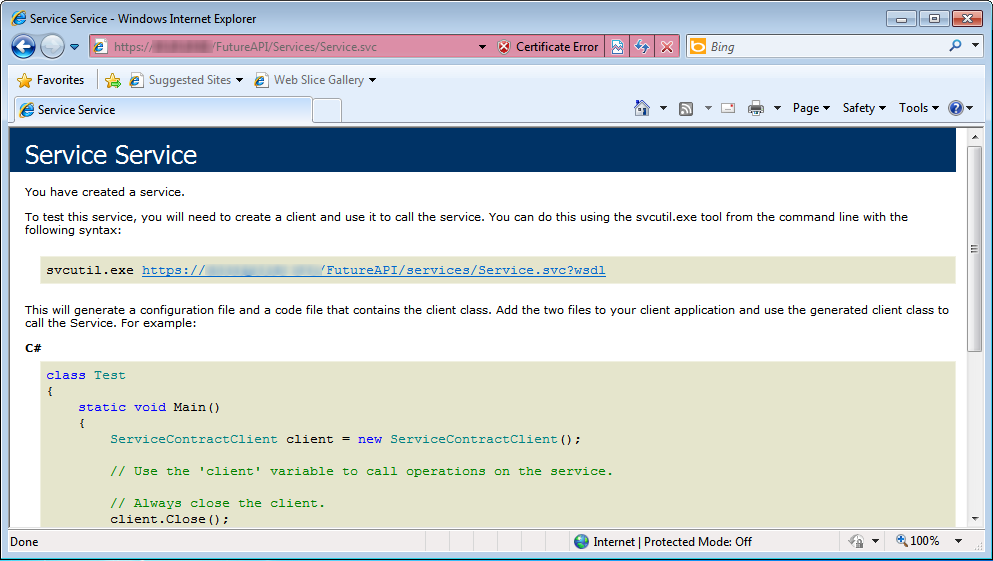
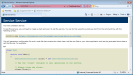
- The Service Created page will be displayed. If the Service Created page does not display, there may be a problem with the Enterprise Server's configurations. Verify that the Enterprise Server location's router is port forwarding to ports 80 and 443. Consult your router's manual for instructions on port forwarding.
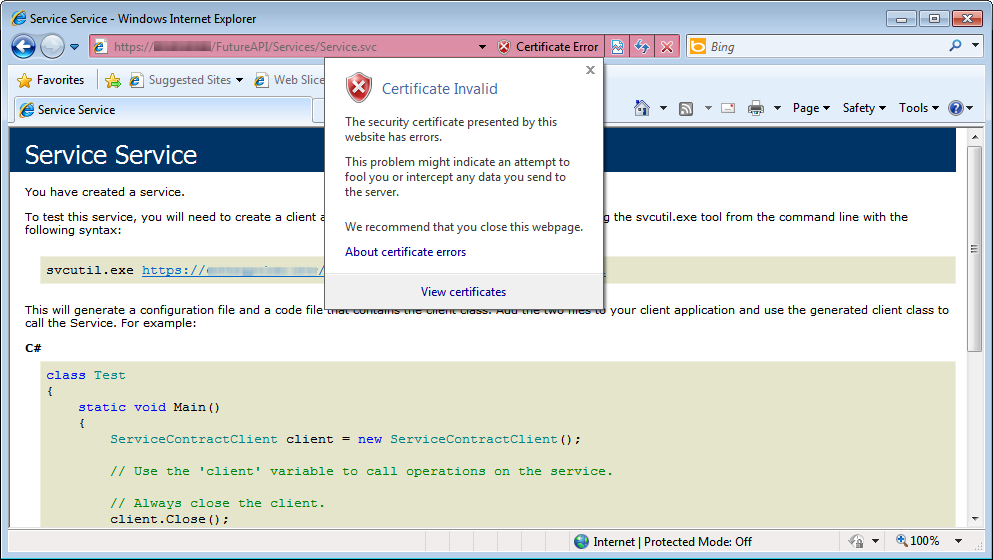
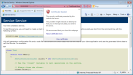
- In the address bar, click the Certificate Error icon. The Certificate Invalid dialog will be displayed.
- Click View Certificates.
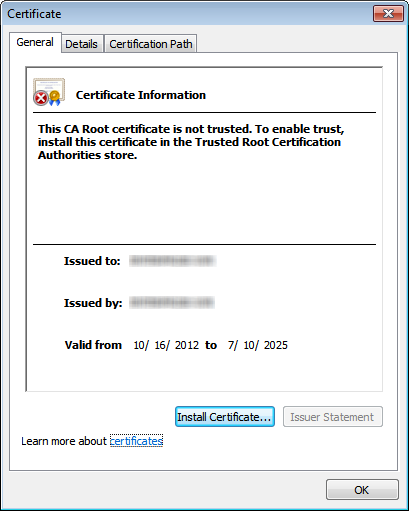
- When the Certificate Information window appears, click the Install Certificate button.

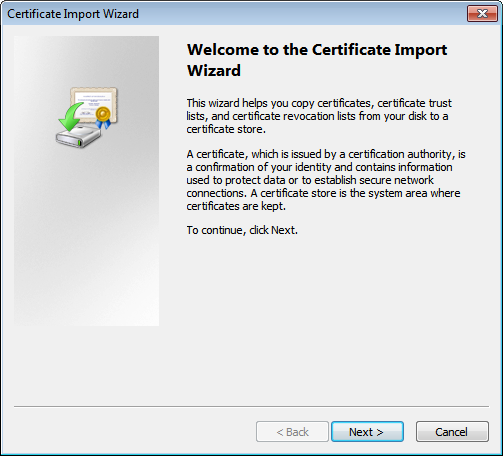
- The Certificate Import Wizard will open. Click the Next button to begin installing the certificate.

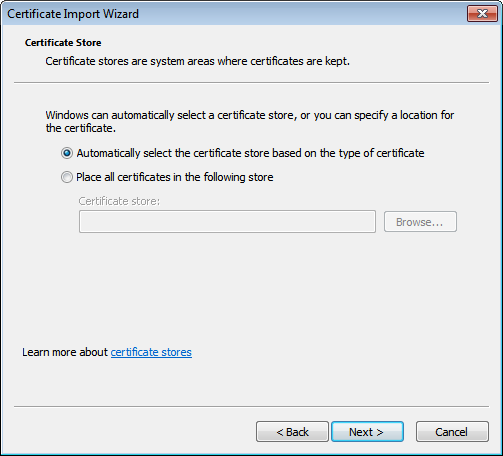
- Select a certificate store option. The default option, Automatically select the certificate store based on the type of certificate, is shown below. After selecting a certificate store option, click the Next button.

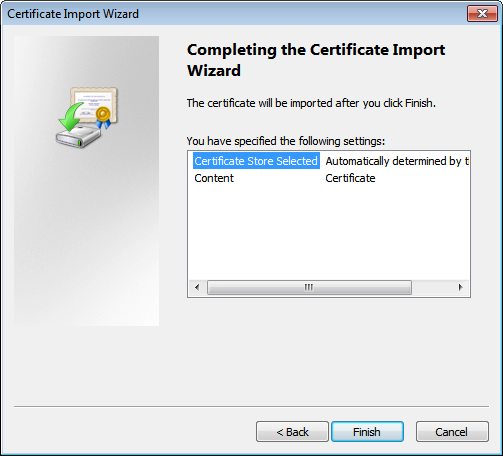
- Verify the certificate store settings and then click the Finish button.

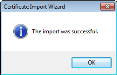
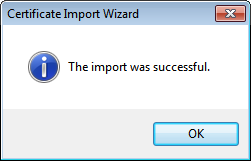
- The Certificate Import Wizard success dialog will appear. Click OK to dismiss the dialog.