Processing Credit Cards with DataTran
Users can process using DataTran. DataTran is a payment processing system that uses a dial-up connection to process transactions. The DataTran unit must be connected to the server via a 9-pin serial port. All DataTran transactions must be processed at the server, including batching credit sales. Users will need to have their unit programmed by Datacap Software prior to processing with FPOS. For more information or device support, visit the DataTran website, www.datacapsystems.com.
To perform manual or batch transactions when processing with DataTran, use the Data Tran CCAM Interface.
 How to Configure DataTran Payment Processing
- Open the Back Office.
- Click the Settings icon.
- Select System Settings. The Credit/Debit/Gift tab will be displayed by default.
- Click the Credit Card tab.
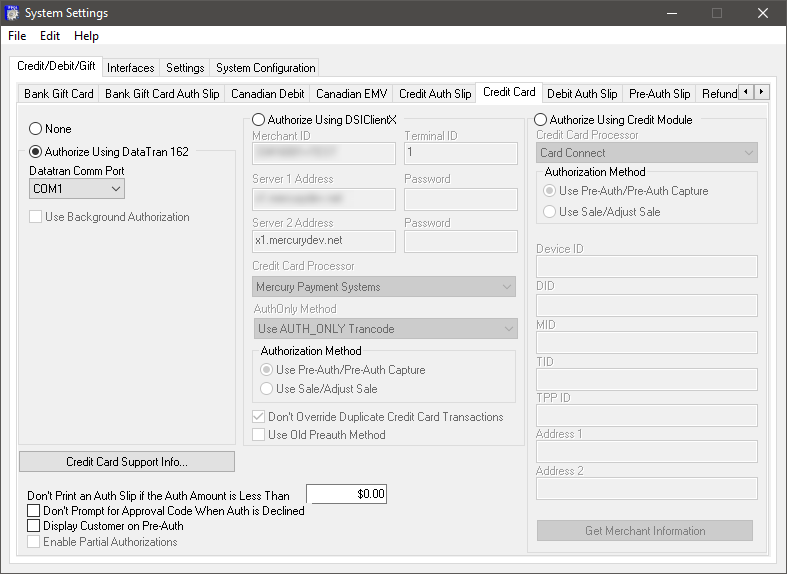
- In the Credit Card tab, click the Authorize Using DataTran 162 radio button to enable processing with DataTran. This will enable the DataTran CCAM. Then, configure the DataTran settings.
- Select a DataTran Comm Port from the drop down.
- Select the Use Background Authorization check box
to allow background card authorizations.
- Click File > Save to save and apply the credit card processor settings.
How to Configure General Credit Card Options
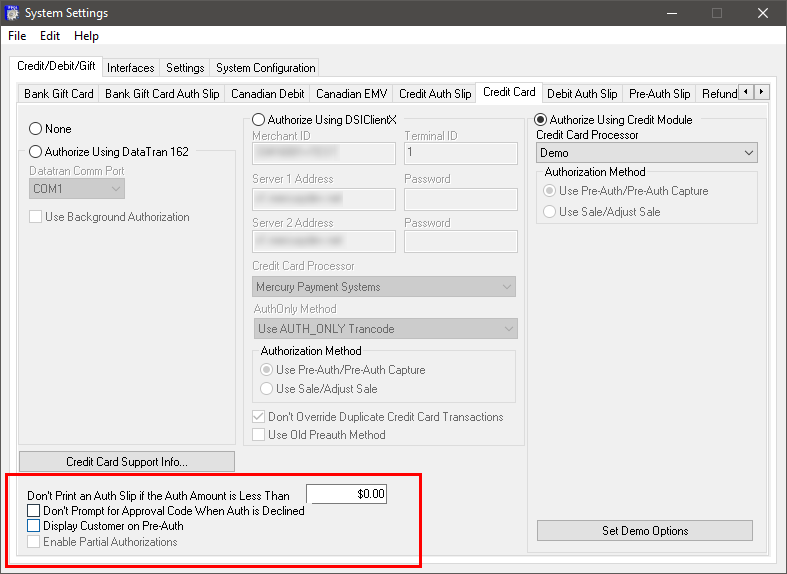
- In the Credit Card tab, click the Credit Card Support Info
button. Any text entered will be displayed within the Support Info window of the active credit card module.
- The Don't Print an Auth Slip if the Auth Amount is Less Than option allows the user to specify when authorization slips will be printed. Any amount less than the dollar amount entered will not print an authorization slip at the time of the sale.
- Check the Don't Prompt for Approval Code When Auth is Declined check box to prevent the module from prompting for an approval code. The user will be required to perform the card swipe again.
- Check the Display Customer on Pre-Auth check box to display the customer's name on the pre-authorization approval notification.
-
Check the Enable Partial Authorizations option to settle a portion of a sale using the balance of a Visa or MasterCard gift card. The user will also be prompted to enter the remaining portion of the sale with an alternative media. If this option is unchecked, cards pre-authorized, but not containing the full amount of the sale, will be declined. This option is only available for selected processors including Cayan, EMS, Global, Jet Pay, Paymentech, Sterling, and Tsys.
- In the System Settings window, click File > Save to save and apply the credit card settings.
Open topic with navigation