Enterprise Sync Developer Mode
Users can use Enterprise Sync Developer mode to sync data from Enterprise to the store and vice versa. Enterprise Sync Developer Mode has additional options that are not included in Enterprise Sync (accessed from the Back Office), including the Cancel Sync option and the All and Region data to sync options.
 Enterprise Sync Developer Mode should only be accessed by advanced users and the database should always be backed up before making any changes.
 How to Sync Store Data to Enterprise
- Open EnterpriseSync.exe in developer mode.
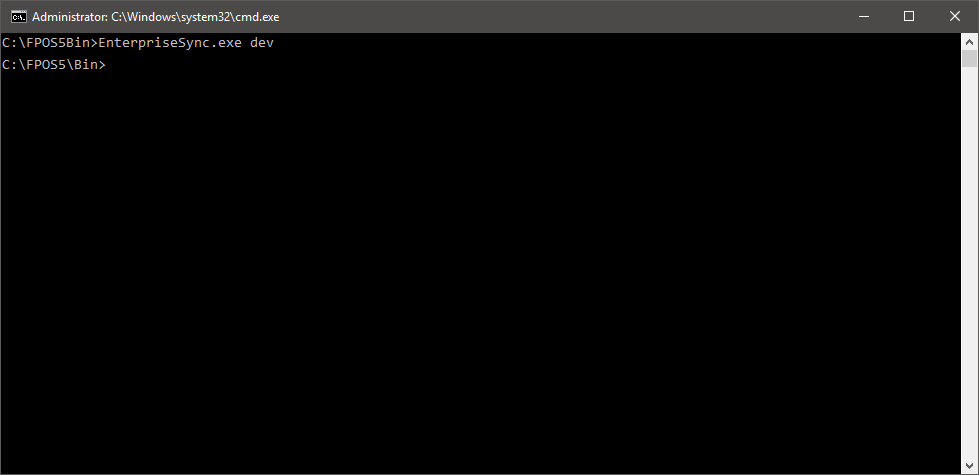
- Open a command prompt.
- Enter the FPOS5 Bin folder path followed by enteprisesync.exe dev. For example, C:\fpos5\bin\enterprisesync.exe dev.
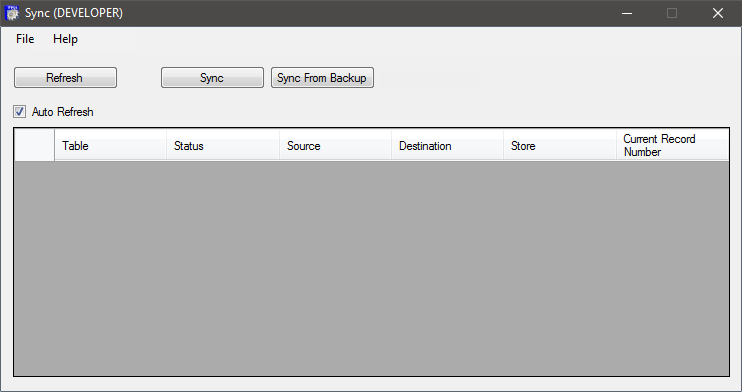
- When the Sync (DEVELOPER) window opens, click Sync.
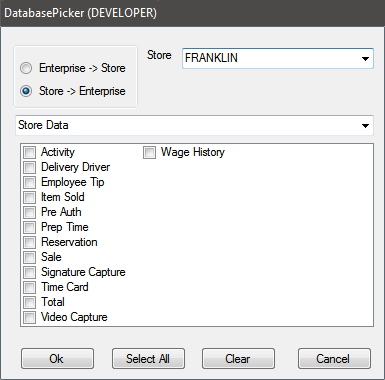
- When the Database Picker window opens, select a Store from the drop down.
- Select a sync option:
- Select the Enterprise -> Store radio button to sync the Enteprise data to the store.
- Select the Store -> Enterprise radio button to sync the store data to the Enterprise server.
- Select data to sync from the drop down:
- All syncs all data tables.
- All Store syncs both store data and store configuration tables.
- Store Data syncs store data tables.
- Store Config syncs store configuration tables.
- Region syncs only regional data tables.
- Select tables from the list box or click the Select All button to select all tables listed.
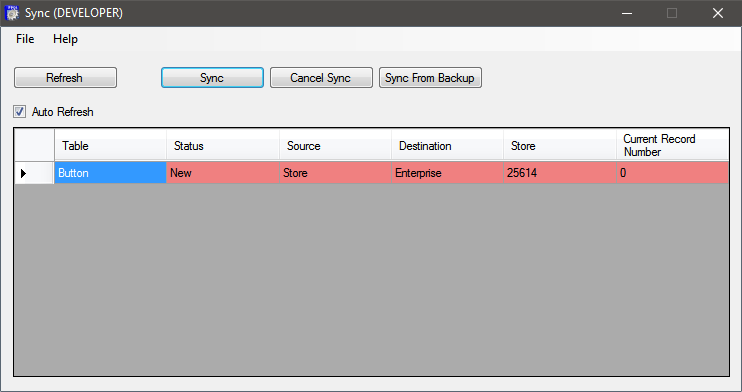
- After configuring the sync options, click the OK button to begin synchronizing data. The Sync window is shown below as an in progress, Button table sync from the Store to Enterprise. When the Sync has completed, the table row will be displayed in green.
Open topic with navigation