Enterprise Sync
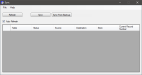
Enterprise Sync allows users to sync data between a Store Server and the Enterprise Server.
 How to Perform an Enterprise Sync
- From the Enterprise Server, open the Back Office.
- Click the Settings icon.
- Select Enterprise Sync.
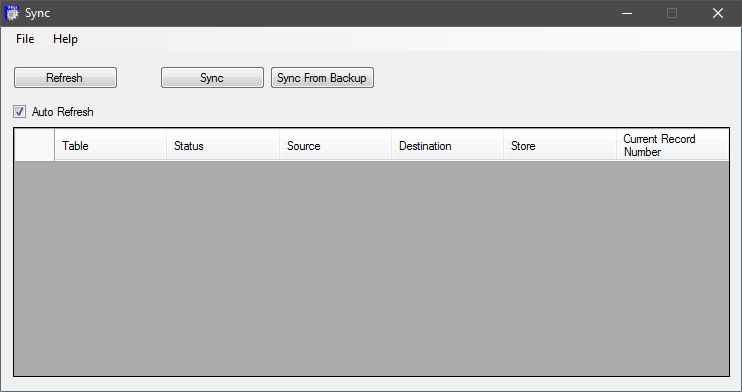
- Click the Sync button.
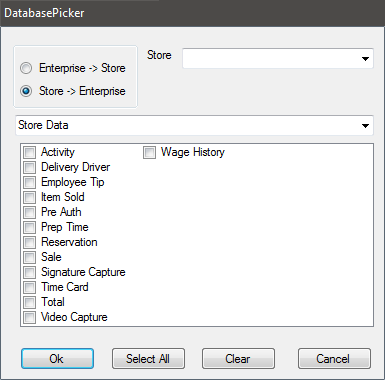
- Choose Enterprise > Store or Store > Enterprise.
- Enterprise > Store updates the Store with Enterprise data
- Store > Enterprise updates Enterprise with Store data.
- Select a store to sync from the Store drop down.
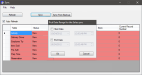
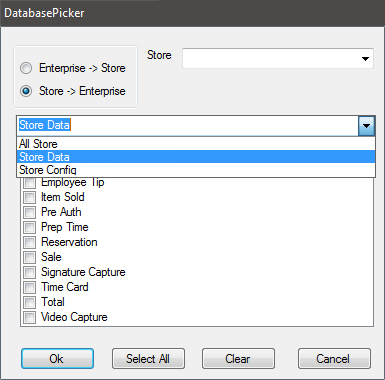
- Select data to sync from the Store Data drop down. Select specific tables to sync by clicking the check box to the left of the table's name or select all tables by clicking the Select All button.
- All Store syncs both store data and store configuration tables.
- Store Config syncs store configuration tables.
- Store Data syncs store data tables.
- Click OK.
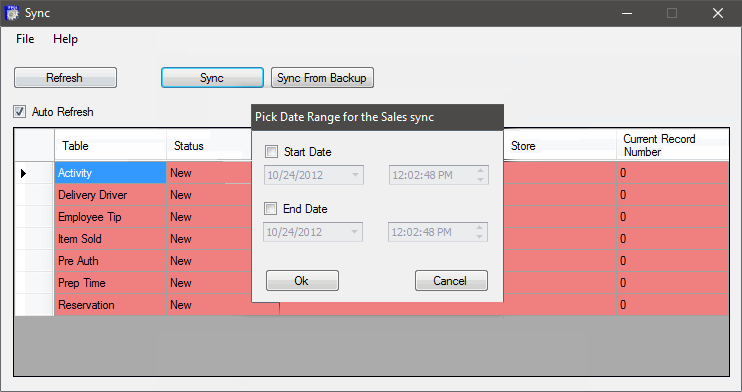
- Select a Date Range to sync. Select a Start Date and End Date or leave the Start Date and End Date check boxes unchecked to select all dates.
- Click the OK button.
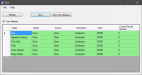
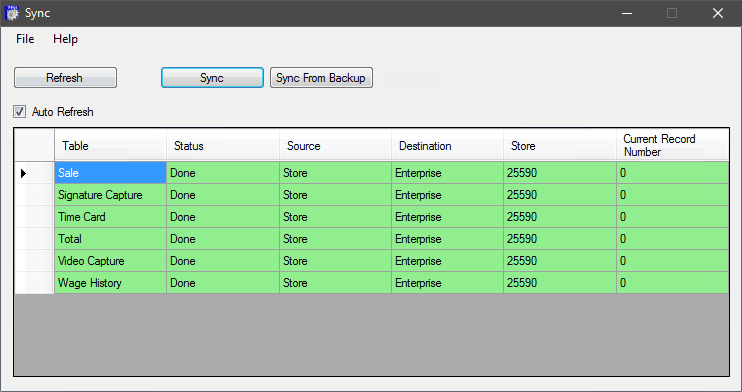
- When the sync is complete, the rows will be displayed in green and the Status column will read "Done".
Open topic with navigation