Adding a New Enterprise Employee
Users can add employees to Enterprise using Enterprise Employee Maintenance. Employees added to Enterprise can be accessed from any stores within the Enterprise environment.
 How to Add a New Enterprise Employee
- From the Enterprise Server, open the Back Office.
- Click the Maintenances icon.
- Click Enterprise Employee.
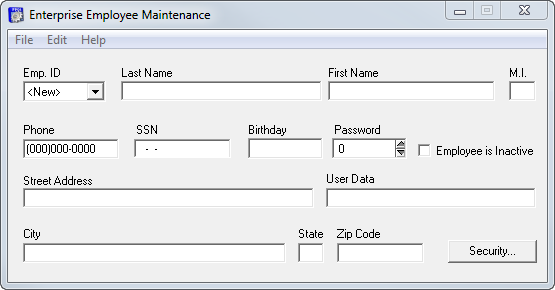
- Select New from the Emp. ID drop down menu.
- Enter the employee's personal information in the text fields.
- Set the employee's Password. This is the password the employee will use when signing into the Back Office.
- Select the Employee is Inactive checkbox if the employee is no longer active. If this check box is activated, employee data will be stored in the system for reporting purposes.
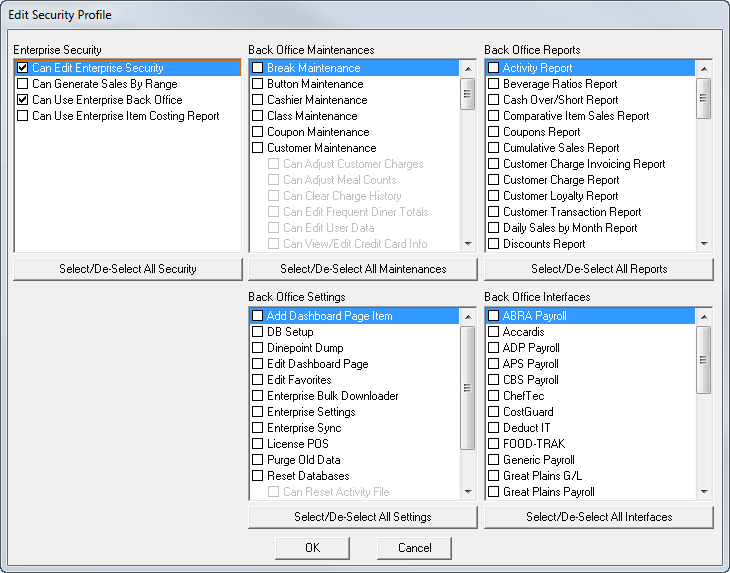
- Click the Security button to configure the employee's Back Office access. The Edit Security Profile window will open. To enable options for the selected employee, select the check box to the left of the options that should be enabled.
- When selected, Enterprise Security settings enable the user to complete the tasks listed, from the Enterprise Server.
- When selected, Back Office Maintenances, Reports, Settings, and Interfaces enable the user to access the selected Back Office options from the Store Servers within the Enterprise environment.
- Configure the Enterprise employee's security options, then click OK.
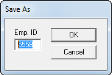
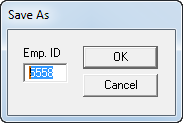
- In the Enterprise Employee Maintenance window, click File > Save. The Save As dialog will open with the next Employee ID available listed under Emp. ID.
- Configure the Emp ID, if desired and then click OK.
Open topic with navigation