Fingerprint Employee
This function will capture an employee's fingerprint so that they can log into the Future Fusion system with their fingerprint instead of an ID and/or Password. The URU Fingerprint Reader by Digital Persona is recommended.
 How to Create a "Fingerprint Employee" Button
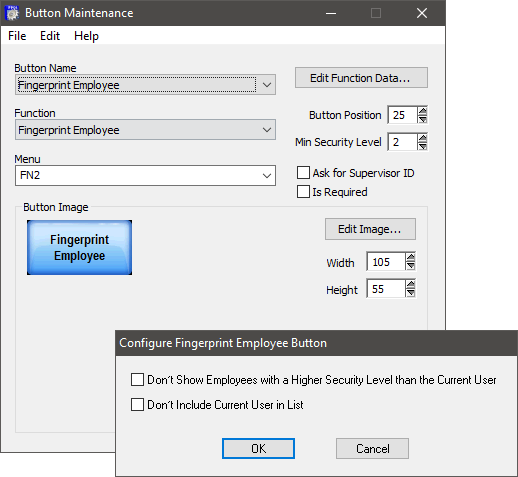
- In Button Maintenance, select Fingerprint Employee from the Function drop-down.
- Click Edit Function Data.
- Select your preferred settings and then click OK.
- Don't Show Employees with a Higher Security Level than the Current User: This option will remove employees with a higher security level than the current employee, from the employee list box displayed on the Front End.
- Don't Include Current User in List: This option removes the current user from the employee list box on the Front End.
- Select the Menu and set the Button Position. If desired, set the Min Security Level, Width, Height, Button Appearance and Ask for Supervisor ID. See General Button Maintenance Functions for an overview about the general fields.
- Click the Edit Image button to modify the button attributes.
- Click File > Save As.
- Type a name for the button in the field labeled Button Name.
- Click OK.
Open topic with navigation