Enter Check Description
This function allows the user to enter a description of the check which will be shown in the Active Tables or Bar Tabs terminal screen informational control, VDU screen, or on a printed header/footer.
 How to Create an "Enter Check Description" Button
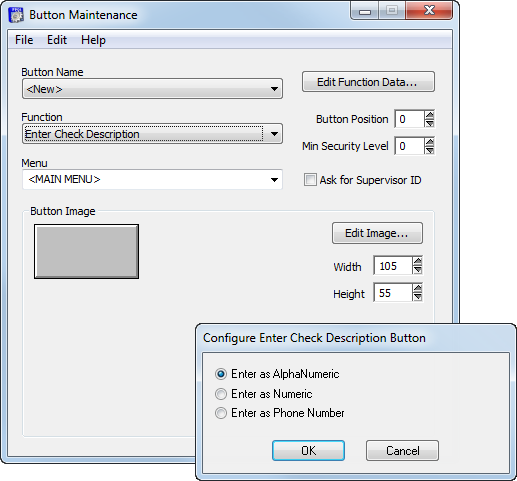
- In Button Maintenance, select Enter Check Description from the Function drop-down.
- Click Edit Function Data.
- Select your preferred settings and then click OK.
- Enter as Alphanumeric: Allows the user to enter a check description containing both letters and numbers.
- Enter as Numeric: Allows the user to enter a check description using only numbers.
- Enter as Phone Number: Allows the user to enter a check description as a phone number.
- Select the Menu and set the Button Position. If desired, set the Min Security Level, Width, Height, Button Appearance and Ask for Supervisor ID. See General Button Maintenance Functions for an overview about the general fields.
- Click the Edit Image button to modify the button attributes.
- Click File > Save As.
- Type a name for the button in the field labeled Button Name.
- Click OK.
Open topic with navigation